
CROP OPTION ICON
How to Crop an Image Using MS Paint
Introduction
Cropping is one of the most basic and useful image-editing techniques. It allows us to remove unwanted parts of an image and focus only on the important area. Microsoft Paint (MS Paint) is a simple image-editing tool available in Windows that helps users perform basic tasks like drawing, coloring, resizing, and cropping images easily.
In this blog, we will learn what cropping is, why it is used, and how to crop an image using MS Paint step by step.
What is Cropping?
Cropping is the process of cutting or trimming unwanted outer parts of an image. It helps improve the appearance of an image by removing unnecessary background or distractions and highlighting the main subject.
Why Do We Use Cropping?
Cropping is used for the following reasons:
To remove unwanted background
To focus on the main object in the image
To improve image composition
To adjust image size for documents or websites
To make images look clean and professional
Steps to Crop an Image in MS Paint
Follow these simple steps to crop an image using MS Paint:
Open MS Paint
Click on the Start Menu, search for Paint, and open it.
Open the Image
Click on File → Open and select the image you want to crop.
Select the Area
Click on the Select tool from the toolbar.
Drag the mouse over the area you want to keep.
Crop the Image
After selecting the area, click on the Crop button in the toolbar.
The unwanted portion of the image will be removed.
Save the Cropped Image
Click on File → Save As, choose the file format, and save the image.
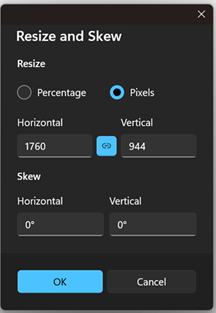
Resize and Skew
Introduction
Resize and Skew helps in resizing the image using their pixel value. You can use option look alike chain (Maintain Aspect Ratio) to give your own height and width of the image. After entering the value you just have to press ok. And then save the image, image will automatically get save with the respected pixel values that you have given.
How to know Which Pixel value to Enter
Whenever, you want to crop an image for uploading on a website or whatever reason for. You have given the height and width of image in pixels. You can use these value in the resize and skew option to provide the proper width and height to the image.
Shortcuts That are used in Paint
| Option Name | Shortcut |
| Open | Ctrl + O |
| Save | Ctrl + S |
| Cut | Ctrl + X |
| Copy | Ctrl + C |
| Paste | Ctrl + V |
| Image Properties | Ctrl + E |
| Crop | Ctrl + Shift + X |
| Resize and Skew | Ctrl + W |
| Zoom In | Ctrl + Page Up |
| Zoom Out | Ctrl + Page Down |
| Show Ruler | Ctrl + R |
| Show Grid | Ctrl + G |
| Full Screen | F11 |
| Select All | Ctrl + A |