
https://gfca.in/wp-admin/post.php?post=2088&action=edit
A Complete Beginner’s Roadmap to Learning Computers
Your step-by-step guide to going from nervous beginner to confident computer user
Everyone starts somewhere. Maybe you have never touched a keyboard before, or maybe you can turn a computer on but feel completely lost after that. Either way, you are not alone. Millions of people around the world feel the exact same way. The good news? Learning to use a computer is not as difficult as it looks. All you need is a simple plan, a little patience, and about 30 to 60 minutes a day.
This guide breaks the journey into clear, manageable stages so you always know what to learn next. Follow along at your own pace and by the end of a few months, you will have a skill set that opens doors in school, work, and everyday life.
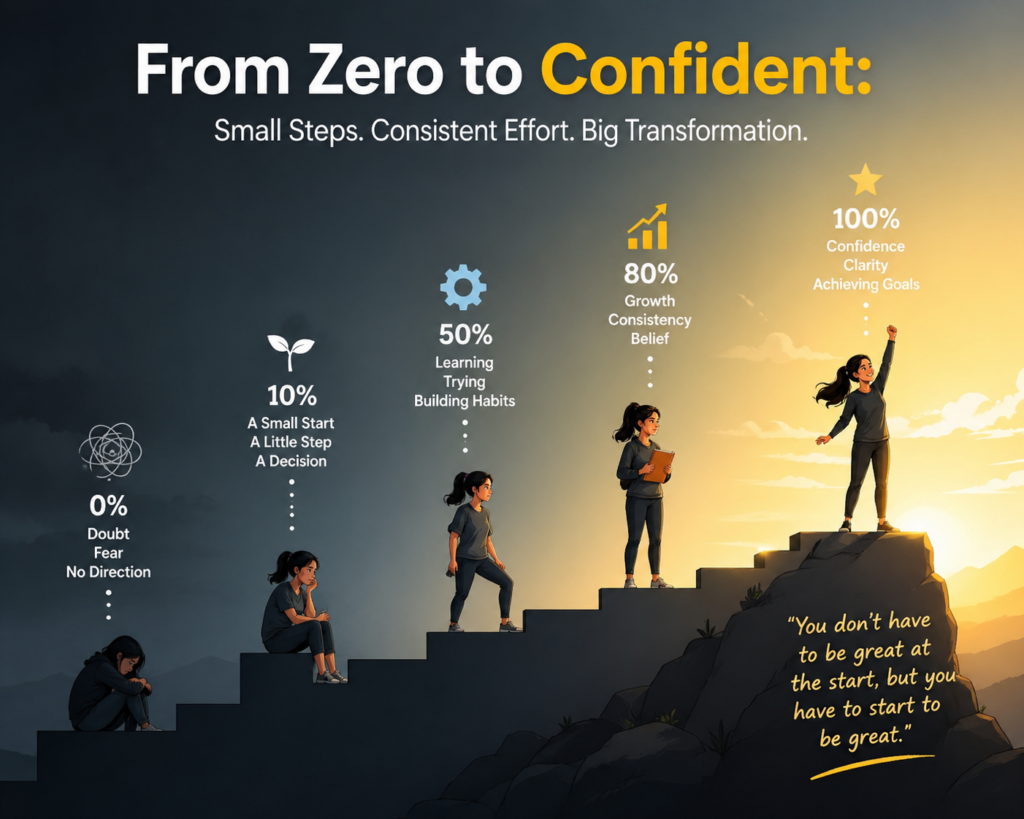
https://www.verywellmind.com/how-to-boost-your-self-confidence-4163098
Stage 1 — Basic Computer Familiarity (Week 1–2)
**Your first goal is simple: stop being scared of the computer.** That might sound funny, but many beginners are afraid of pressing the wrong button and breaking something. Spoiler alert — you almost certainly cannot break a computer just by clicking around. So relax, explore, and get comfortable.
In the first two weeks, focus on understanding these basics:
- What a computer is and the difference between a laptop and a desktop
- The main parts: keyboard, mouse, screen, and CPU (the brain of the computer)
- How to turn the computer on and off safely
- How to open and close programs
- Using the mouse: left click, right click, double-click, and scroll
- Keyboard basics: typing letters, using Backspace, Enter, and Spacebar
For daily practice, open the Notepad application and just type — anything at all. Save the file, close it, find it again, and open it. Then practice creating a new folder on your Desktop, renaming it, moving files into it, and deleting what you no longer need. These small exercises build muscle memory fast.
**Success looks like:** You can sit down at a computer, turn it on, find a program, use the mouse without overthinking, and type a short paragraph without looking at your hands every few seconds.
Stage 2 — Internet Basics (Week 3–4)
Once you are comfortable with the computer itself, it is time to venture online. The internet is one of the most powerful tools in human history — and it is right at your fingertips. Learning to use it wisely will change your daily life.
Spend weeks three and four learning:
- What the internet is and what a browser does (Chrome, Firefox, Edge)
- How to search Google — and how to search smarter with better keywords
- How to open websites and navigate between pages using tabs
- How to create and use a Gmail account for sending and receiving email
- How to download files and save them in organised folders
- Basic online safety: strong passwords, spotting scams, and protecting yourself
Practice by creating your Gmail account, sending a test email to a friend or family member, and searching for a YouTube video on a topic you enjoy. Download one image from the web, save it in a clearly named folder, and find it again later. These are skills you will use every single day.
**A quick safety tip:** Never share your password with anyone, and be suspicious of any website or email that asks for personal information unexpectedly. When in doubt, do not click.
**Success looks like:** You can browse the internet independently, send and receive emails, search for information confidently, and download files without any help.
Stage 3 — Essential Computer Skills (Month 2)
This is where things get really useful. The three tools you will learn in this stage are used every day in schools, offices, hospitals, shops, and homes across the world. Master these and you will be prepared for almost any desk-based job or school task.
1. Word Processing — Microsoft Word or Google Docs
Word processing is simply typing documents on a computer instead of paper. You will learn to type and format a document, change the font size and style, make text bold or italic for emphasis, and save your document as a PDF to share professionally. A great first project is writing your own simple resume — something you can actually use when applying for jobs or courses.
2. Spreadsheets — Microsoft Excel or Google Sheets
Spreadsheets are tables made of rows and columns where you can store numbers, names, dates, and more. They are used for everything from tracking household budgets to managing thousands of records in a business. Start by learning how tables are structured, then explore two essential formulas: SUM (to add up numbers automatically) and AVERAGE (to find the average of a set of values). Try making a simple monthly budget or a marks sheet for your subjects — practical projects make the learning stick.
3. Presentations — PowerPoint or Google Slides
Presentations are used in schools for projects, in offices for meetings, and in businesses to pitch ideas. Learn how to create slides, add headings and paragraphs, insert images, and arrange everything so it looks clean and professional. A well-made presentation tells a story visually, so practice keeping each slide focused and uncluttered.
**Success looks like:** You can type and format a document, build a simple budget in a spreadsheet, and create a basic slide presentation — all without needing to ask for help.
Stage 4 — Typing Speed (Running Alongside Everything)
Here is a secret that most beginner guides skip: **typing speed matters more than people realise.** If you have to hunt for every single letter on the keyboard, even simple tasks take twice as long and feel twice as hard. Good typing makes everything else easier.
From week one onwards, set aside just 10 to 15 minutes every day to practise touch typing — that means typing without looking at the keyboard. Free websites like Typing.com, Keybr, or 10FastFingers can guide you through structured lessons. Aim to reach a comfortable speed of 30 to 40 words per minute within two months. It will feel slow and awkward at first, but consistency is everything.
Stage 5 — Choose Your Direction (After Month 2–3)
Once you have the basics firmly in place, the real excitement begins: choosing what to specialise in. The digital world is enormous, and there are many rewarding paths to explore. Here are some popular directions worth considering:
- Graphic Design — creating logos, posters, and visuals using tools like Canva or Adobe
- Programming — writing code to build websites, apps, or software
- Video Editing — cutting, trimming, and producing videos using software like CapCut or DaVinci Resolve
- Data and Excel — analysing data, building dashboards, and working with large datasets
- Digital Marketing — managing social media, SEO, and online advertising for businesses
The most important advice here: **do not rush this decision.** Spend a few days watching YouTube videos about each option and see which one genuinely excites you. Passion makes learning faster and more enjoyable. Whatever you pick, the foundation you have built in stages 1 to 4 will support you every step of the way.
Your Simple Daily Plan (30–60 Minutes a Day)
Here is exactly how to structure your learning journey:
| Time Period | Focus Area |
| Week 1–2 | Basic computer use: keyboard, mouse, files, and folders |
| Week 3–4 | Internet + Email: browsing, Gmail, online safety |
| Month 2 | Word + Excel + PowerPoint: the three essential tools |
| Month 3+ | Choose a skill direction and dive deeper |
You Can Do This
Learning computers as an adult or a complete beginner is one of the most rewarding things you can do for your future. Every expert you see today was once exactly where you are right now — staring at a screen and wondering where to start.
The secret is to begin. Open your computer today, try one small thing, and celebrate every little win. Did you save a file for the first time? That is a win. Did you send your first email? That is a win. Did you type a sentence without looking at the keyboard? Huge win.
Follow this roadmap consistently, give yourself grace when things feel confusing, and watch yourself transform from a nervous beginner into a confident computer user in just a few months. The digital world is waiting for you — go ahead and step in.
— End of Article —